
📚 Help Center
🆘 Help Center
Find all the answers to your questions about 🏛 Bottaviano. FAQs, guides, and technical support for every bot feature.
❓ Frequently Asked Questions
Answers to the most common questions about security, limits and features
🔐 Security and Privacy
Does the bot have access to my messages?
Limited and secure. 🏛 Bottaviano only monitors specific messages for active features: group invite links (for Account Recovery), mentions (@username), replies to your messages, and — if you turn it on — matching against the words you chose for notifications, plus messages that trigger triggers. It does not store or analyze the full content of your messages. We only save the necessary technical IDs (messages, groups, topics) without direct references to users, ensuring GDPR compliance and maximum security.
Is my data safe?
Yes, completely. We use military-grade AES-256 encryption for all sensitive data. Account Recovery backups are protected by personal passwords and only accessible to you. The groups managed by the system (notifications, lists, recovery) have advanced protections that prevent access to anyone other than you. No data is ever shared with third parties and we fully comply with GDPR regulations.
Why does the bot ask for access to my account?
To function as a userbot. The bot operates as if it were you (userbot) to create groups (notifications, backups), send automatic messages (AFK, triggers) and monitor your groups (lists). This allows you to have a complete experience: the features continue to work even when you are not directly interacting with the bot. All permissions are limited to the specific features you activate.
What happens if I lose access to my account?
With the Pro plan you are protected. The Account Recovery system allows you to recover your data even if you lose access to the original Telegram account. Backups are encrypted and protected by personal passwords.
How can I delete all my data?
Easily via Utility. You can delete all your data at any time via Hub (/start command) → 🛠️ Utility → 🗑 Delete Account. This operation is irreversible and permanently removes all your data from the system.
How are account backups protected?
Completely decentralized backups. The bot does NOT save any backup information on the database. It only creates a private group for you where it organizes your data. The bot is unable to know what has been saved in the backup group and all account information is processed in a completely anonymous way.
Does the bot respect Telegram's limitations?
Yes, completely. The bot respects all Telegram rate limits and implements protection systems to prevent floods and abuse. All operations comply with Telegram's policies and never violate the terms of service.
📊 Limits and Subscription Plans
What are the limits of the Basic plan?
Basic Plan (Free): Unlimited notifications, AFK with promotional mention, 3 private triggers, no lists, no backups. Ideal for getting started and testing the features.
What does the Pro plan include?
Pro Plan (€9.99/month): Everything unlimited + Account Recovery with automatic backups and data import/export.
Can I change plans at any time?
Yes, always. You can upgrade or downgrade your plan at any time via Hub (/start command) → 👤 Account → 🔧 Manage subscription
How does billing work?
Automatic billing. Plus and Pro plans renew automatically every month or year. You can cancel your subscription at any time through your Payhip account. The Basic plan is always free.
What happens if I exceed the limits of my plan?
Impossible to exceed the limits. The system prevents you from creating more elements than your plan allows (e.g. 4 triggers with a Basic plan that only allows 3). When you reach the limit, the bot blocks the operation and suggests you upgrade. As long as you are below the limit, the system will not bother you with unnecessary warnings.
Can I use the bot on multiple accounts?
One account per subscription. Each subscription is valid for a single Telegram account. If you want to use the bot on multiple accounts, you will need to create separate subscriptions for each.
⚙️ Features and Limitations
Why are lists only for paid plans?
To avoid spam. Lists automate the sending of messages between groups. Without limits, they could be used for massive spam by malicious VoIPs. Plus/Pro plans guarantee responsible use with appropriate controls and limits.
Why does AFK have advertising in the Basic plan?
To support the free service. The Basic plan is completely free and already includes many features. Advertising in the AFK message helps keep the service accessible to everyone.
Why are notifications unlimited in all plans?
Because they are essential. Notifications are the basic functionality of the bot and do not represent a risk of abuse. All users deserve to receive complete notifications about their important messages.
How do two time windows work for lists and the secretary?
Two windows in the same day. You can enable "time window 2" and define a first window (e.g. office hours 08:00–18:00) and a second one (e.g. overnight 22:00–06:00). The bot validates the schedule and guides you if something is missing: the second window cannot start before the first window ends.
What are "Delete on reply" and "Midnight cleanup" in the secretary?
Two separate settings. "Delete on reply" controls whether the forwarded secretary message is removed when you reply in the chat (you can keep it). "Midnight cleanup" clears stored secretary messages at midnight (Italy time) when enabled. Both appear on the 💤 Secretary screen together with the time window options.
Can I sync a list’s recipients with multiple Telegram folders?
Yes. In automatic mode, on the folder picker you can enable multi-select and choose several folders; the bot merges valid groups/channels as recipients (same filtering rules for forums and posting permissions). The button becomes "Set folders" and recipient management shows the selected folders.
🔧 Technical Aspects
Why does the bot sometimes not respond?
Telegram rate limiting. Telegram imposes rate limits to prevent spam. The bot respects these limits to avoid bans. If you notice delays, it is normal and temporary.
Why do I have to create groups for some features?
For organization and control. Dedicated groups (notifications, backups) allow you to separate automatic content from your personal groups. You have complete control over who can access and what is shared.
Why do some features require a password?
For extra protection. Account Recovery and critical features require a password to ensure that only you can access your data. Passwords are encrypted and never accessible to the team.
How does data encryption work?
Military AES-256. All sensitive data is encrypted with AES-256, the most secure military standard. Account Recovery backups are protected by personal passwords and only accessible to you.
Does the bot work on all devices?
Yes, completely. The bot works on all devices that support Telegram: smartphone, tablet, desktop. All data is automatically synchronized between devices.
What happens if Telegram changes the APIs?
Automatic updates. The team constantly monitors changes to the Telegram APIs and updates the bot automatically. You will never have to worry about compatibility or manual updates.
How is data privacy managed?
Privacy by design. The bot is designed with privacy by design: it collects only the necessary data, encrypts it immediately and never shares it with third parties. You can delete all your data at any time.
📖 Guide
Need help? Our team is always available for assistance
Backup Account Telegram (Account Recovery)
📚Introduction to Backup Account
For complex issues or special requests

How Backup Works
Saves contacts, chats, messages and profile data
Your account group with data is protected with a secure password
Restore data when needed
📱Backup Start
For complex issues or special requests
Complete Backup Restore
Restore data from an existing backup:
Bottaviano ListsBackup process:
Scans and collects all important data
Protects data with a secure password
Downloadable backup file
📥Backup Recovery
For complex issues or special requests
Complete Backup Restore
Restore data from an existing backup:
Bottaviano ListsRestore process:
Enter the password to decrypt
Password verification and confirmation
Access the group with the invitation link
⚠️Important Rules
Lists System
📚Introduction to the Lists System
For complex issues or special requests
🎯 Main Features
📥 Automatic Collection
Retrieves messages from configured source groups
⚙️ Intelligent Processing
Transforms content based on list type
📤 Controlled Distribution
Sends to recipients with personalized timing
🔒 Security Management
Respects Telegram limits and prevents spam
🔧 System Components
🎨Available List Types
Bottaviano supports three types of lists, each optimized for specific communication needs:
Bottaviano ListsLists ManagementADV - Random Messages
Functioning: Picks random messages from configured source groups
Automatic variety of content, perfect for different promotions
Requires source groups and sending interval
Company newsletters with variable content
STANDARD - Fixed Message
Functioning: Always sends the same predefined message
Standardized communications, total control of content
Requires a source message and interval
Recurring notices, official communications
MEDIA - Media with Caption
Functioning: Takes media from source groups and adds a personalized caption
Visual content with personalized texts
Requires source groups and time slot
Marketing campaigns with photos/videos and promotional messages
➕Creation of a New List
- 1. Go to the main menu (
/start) and select '📋 Lists' - 2. If you have no lists yet, click '➕ Create new list'. If you have at least one list, you will also find the button '🧬 Clone list' and the button '📝 Manage lists'.
- 3. Choose the type of list based on the content you want to manage
- 4. Enter a descriptive name for the list without spaces, using hyphens or CamelCase (e.g: 'NewsletterAziendale or newsletter-aziendale')
- 5. The system will create the list and take you to the configuration
- 6. The list will initially be 'to be configured' until completion
📝 Creation Example
When you create a new list, the bot will guide you through this flow:
Create your List
🔹 Choose the type that best suits your needs:
📝 Enter the name
When you create a new list, the bot will guide you through this flow:
PromoEstate, NewsSettimanali
autumn-events
⚠️ Important Rules
🧬Cloning of a List
- 1. Go to the Lists menu (📋 Lists) and make sure you have at least one existing list
- 2. Click '🧬 Clone list'
- 3. Select from the screen the list to use as source
- 4. Enter the new list name (no spaces). The cloned list will not start automatically and recipients will not be copied
- 5. The system creates the new list with the same settings as the source (type, schedule, message sources) and takes you to configuration
📝 Cloning example
When you clone a list, the bot guides you in three steps: choose the source list, then enter the new list name. The cloned list will have the same settings (type, schedule, sources...) but no recipients and will not start automatically.
1️⃣ Tap 🧬 Clone list to start cloning.
Bottaviano ListsLists Management2️⃣ Choose from the screen the list to copy type and settings from (message sources, schedule, etc.).
💡 The new list will have the same settings but no recipients and will not start automatically.
3️⃣ Enter a name with no spaces; then the system creates the new list and takes you to its configuration.
autumn-events🔹 Type: 🚀 STANDARD
• Do not use spaces in the name
• The cloned list will not start automatically.
• Recipients will not be cloned.
What gets copied (and what doesn't)
⚙️List Configuration
A completely configured list requires the following essential parameters to work correctly:
🗣️ Source Groups
The groups from which messages are taken. They can be:
The groups from which messages are taken. They can be:
Adding the bot as an administrator
Public and private
Specific topics
1b. Message to Send
For STANDARD lists, configure a fixed message to always send the same:
Configuration options:
View the original message
Choose a new message to forward
Return to the main menu
2. All messages / Only my messages
For 💎 ADV / 🖼 MEDIA lists, choose which messages to extract:
Extraction mode:
Extract all messages from the group
Extract only your messages
Alternate between the two modes
3. Time slot
Configure the list's activity times:
Time slot configuration:
You can enable «⏰ Time window 2»: the first window becomes start/stop 1 and start/stop 2 appears for a second interval in the same day (e.g. daytime 08:00–18:00 and night 22:00–06:00). When the second window is on, the bot checks that the times are consistent.
Hours configuration:
Activate/deactivate the time slot
Set the start time (e.g. 09:00)
Set the stop time (e.g. 18:00)
4. Daily limit
Set the maximum number of messages to send per day:
Limits configuration:
Activate/deactivate the limit
Set the maximum number
Monitor sends made
5a. Interval between sends
Set the waiting time between sends:
Intervals configuration:
Fixed time between sends (min. 5 min)
Adds variability (1-5 min)
Makes sends more natural
5b. Hour range
Set specific hours for sending messages:
Set specific hours (e.g. 2-6)
Activate/deactivate the time slot
Configure daily limits
6. Add text
Enable the inclusion of a custom message:
Messages configuration:
Enable/disable custom message
Compose the message to include
By adding [[hello]] to the text, the bot will insert greetings (good morning, good evening, etc.) based on the sending time.
🗣️Source Groups Management
The source groups are the sources of messages that will be processed and sent to the recipients. The bot must be a member of these groups to be able to access the contents.
Source Groups Configuration
To configure the source groups:

News Aziendali
Marketing Team
Configuration Example
🗣️ Configured source groups:
News Aziendali
Promozioni
→
Offerte Estate
Marketing Team
💡 Messages will be taken from these groups
Important Requirements
👂Recipients Management
The recipients are the groups/channels that will receive the messages processed by the list. Each recipient has separate statistics and can be managed individually.
Mode Selection
The system supports two modes for managing recipients: Automatic and Manual. Choose the one that best suits your needs.
🗂️ Automatic Mode
Automatically synchronizes recipients with one or more Telegram folders: use a single folder or multi-select to merge multiple folders into one recipient set. Recipients update when you change the folders.
🧩 Manual Mode
Add and remove recipients manually, one at a time or in bulk via folders. Full control over each recipient.
🗂️ Automatic Mode
Automatic mode synchronizes recipients with a Telegram folder. When you add or remove groups/channels from the folder, the list's recipients are automatically updated.
To configure automatic mode, follow these steps:
📂 Multiple folders in automatic mode
On the «Select folder to sync» screen you can turn on «🔘 Multi-select: on»: selected folders are marked with ☑️ and the bot merges all valid groups/channels from the folders you confirm. You can switch back to single-folder selection before confirming; settings are saved when you confirm.
Manual Reload
Even though synchronization is automatic, you can force a manual check by clicking "🔄 Reload recipients". The system will check if there are changes in the folder and update recipients.
Automatic Mode Advantages
Automatic Synchronization Limitations
Folder Deleted
If the synchronized folder is deleted, the system automatically stops the list and notifies you. You'll need to set a new folder or switch to manual mode.
🧩 Manual Mode
Manual mode allows you to manually choose each individual recipient. You can add groups/channels one at a time or in bulk via folders.
Single Addition
Marketing TeamBulk Addition
Use the "📂 Select folder" button to add all valid groups/channels from a folder at once. The system will show a preview before confirmation.
autumn-events🎭 Friends5015358859: Vacation Group...5015358859: Vacation Group...5015358859: Vacation Group...4956479778:
autumn-events5015358859: Vacation Group...5015358859: Vacation Group...5015358859: Vacation Group...4956479778: Photo vi...Bulk Remove Recipients
You can remove multiple recipients at once by selecting a folder. The system will only show recipients present in the list that will be removed.
autumn-events🎭 Friends5015358859: Vacation Group...5015358859: Vacation Group...💡 Advantages of bulk addition
Limitations and automatic filters
Mode Switch
⚠️ Warning: When switching from Manual to Automatic, manually added recipients that are NOT in the selected folder will be removed. Do you want to continue?
From Manual to Automatic:
When switching from Manual to Automatic, recipients will be synchronized with the selected folder.
From Automatic to Manual:
When switching from Automatic to Manual, synchronization is disabled and you can manage recipients manually.
Important Requirements
▶️Execution and Control
Once configured, lists can be started, monitored and controlled through a complete management system.
Starting Lists
Real-Time Monitoring
Manual Send
In addition to automatic sending, you can send messages manually:
Immediate verification of the configuration
Send only to specific recipients
Verification before automatic sending
Identifies configuration problems
👁Test and Preview
For complex issues or special requests
Test Features
⚠️Limits and Security
There are specific limits for lists. The system includes advanced security controls to prevent spam and avoid bans.
Anti-Spam System
Problem Prevention
Always test before automatic start
Check statistics regularly
Always respect limits and intervals
Keep the bot updated
🔧Troubleshooting
Here are the most common problems and their solutions to quickly resolve any difficulties.
Common Problems
Notifications
📚Introduction to Notifications
Notifications centralize into your service group what you enable in the bot, with the same wording as «Notification management»: mentions (@tag), replies to your messages, words you watch for in messages and, if you want, only the chats you choose (manual or from Telegram folders).
How Notifications Work
Receive notifications when someone tags you in a group
Get notified when someone replies to your messages
You receive a notification when a message contains one of the words listed here (according to the match options below).
Choose whether Telegram keeps your list in sync from folders or you pick which groups and channels to watch yourself.
All notifications arrive in a specific group
You choose where to receive notifications
🔔Notification panel
From Hub → Notifications the bot shows the Notifications management message: service status, what you’ll receive, active rules, delivery to your Domus group, and every button to toggle or configure.
Notifiche BottavianoGestione NotificheWhat the main controls do
▶️ Enable / ⏸️ Disable notifications — pauses or resumes the whole service; while paused nothing is sent to your service group.
🏷️ Notify @tag — turns mention/tag notifications on or off (together with your other rules and “selected chats only” when used).
↩️ Notify replies — notifications when someone replies to one of your messages.
🔔 Go to Notifications — opens the group where notifications are delivered (quick link from the same screen).
✏️ Set words and 💬 Configure chats open the wizards covered in 🔤 Notify words and 🎯 Selected chats only.
🔤Notify words
From Notifications management tap ✏️ Set words: add each word or phrase (one message each), then refine matching with ⚙️ Match options and confirm with Done.
Match options
• Partial match matches substrings and works well for emoji and symbols.
• Ignore case treats e.g. “Pro” and “pro” the same.
The notifications status message summarizes active rules.
From the list you can tap a word to remove it.
🎯Selected chats only
Turn on selected chats only so tags, replies and words apply only to chats in your list. Build the list automatically from Telegram folders or manually, like list recipients.
Folders, sync, preview, folder import and list review follow the same flow as Lists → Recipient management; apply that walkthrough to “monitored chats” for notifications.
Mode Selection
The system supports two modes for managing chats: Automatic and Manual. Choose the one that best suits your needs.
🗂️ Automatic Mode
Automatically synchronizes chats with one or more Telegram folders: use a single folder or multi-select to merge multiple folders into one chat set. Chats update when you change the folders.
🧩 Manual Mode
Add and remove chats manually, one at a time or in bulk via folders. Full control over each chat.
🗂️ Automatic Mode
Automatic mode synchronizes chats with a Telegram folder. When you add or remove groups/channels from the folder, this list's chats are automatically updated.
To configure automatic mode, follow these steps:
📂 Multiple folders in automatic mode
On the «Select folder to sync» screen you can turn on «🔘 Multi-select: on»: selected folders are marked with ☑️ and the bot merges all valid groups/channels from the folders you confirm. You can switch back to single-folder selection before confirming; settings are saved when you confirm.
Manual Reload
Even though synchronization is automatic, you can force a manual check by clicking "🔄 Reload from folders". The system will check if there are changes in the folder and update chats.
Automatic Mode Advantages
Automatic Synchronization Limitations
Folder Deleted
If the synced folder is deleted or unavailable, set a new folder or switch to manual mode so you do not lose the “selected chats only” filter.
🧩 Manual Mode
Manual mode allows you to manually choose each individual chat. You can add groups/channels one at a time or in bulk via folders.
Single Addition
Marketing TeamBulk Addition
Use the "📂 Select folder" button to add all valid groups/channels from a folder at once. The system will show a preview before confirmation.
autumn-events🎭 Friends5015358859: Vacation Group...5015358859: Vacation Group...5015358859: Vacation Group...4956479778:
autumn-events5015358859: Vacation Group...5015358859: Vacation Group...5015358859: Vacation Group...4956479778: Photo vi...Bulk Remove Chats
You can remove multiple chats at once by selecting a folder. The system will only show chats present in the notification list that will be removed.
autumn-events🎭 Friends5015358859: Vacation Group...5015358859: Vacation Group...💡 Advantages of bulk addition
Limitations and automatic filters
Mode Switch
⚠️ Warning: when switching from Manual to Automatic, manually added chats that are not in the selected folder will be removed. Continue?
From Manual to Automatic:
When switching from Manual to Automatic, the list aligns with the selected folder.
From Automatic to Manual:
When switching from Automatic to Manual, sync turns off and you manage chats individually.
Important requirements
🔧Troubleshooting
When you create your account, the bot sends you a welcome message with the automatically created service group and configured for notifications, you don't need to do anything.
Notifiche BottavianoGestione Notifiche1. Unreachable Group
When the service group is no longer accessible:
Resolution options:
Automatically creates a new group
You choose the group for notifications
The bot manages everything automatically
2. Notifications Not Configured
When notifications are not yet configured:
Advantages of notifications:
Never miss when you are tagged
Know immediately when someone replies
Everything organized in one place
Trigger (Automatic Replies)
📚Introduction to Triggers
The Triggers are automatic replies that activate when someone writes a specific keyword. They are perfect for FAQs, frequent information and automatic response automation.
How Triggers Work
When someone writes the keyword, the bot automatically responds with the configured message
Only you can activate them, perfect for personal information
Anyone can activate them (except you), ideal for FAQs in groups
Anyone can activate them, including you, perfect for universal responses
Private chats, groups, or both, your choice
➕Creation of a new Trigger
Triggers are based on an existing message, so you must first create the message you want to use as a reply. You can use any forwardable message as a reply message.
• time 💬New Trigger Creation
Create a new trigger by selecting an existing message:
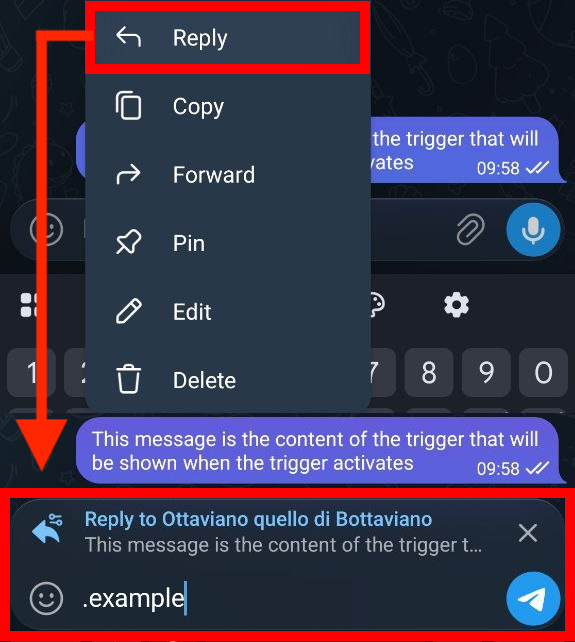
Creation process:
Choose the message to use as a response
Write the word that will activate the trigger
Choose type and where it works
🔍Detail Management
View and modify the details of your existing triggers.
Available features:
Complete information for each trigger
Change type and where it works
Change the keyword
🔒Type of Trigger
Choose if the trigger will be private, public or global and where it will work.
orariAvailable options:
Only you can activate them
Anyone can activate the trigger (except you)
Anyone can activate the trigger, including you
The trigger activates only if the user replies to your message or tags you
When the trigger activates in a group, the reply is sent in private (only for public/global triggers)
⚠️Important Rules
Tips for Effective Triggers
Use words that are easy to remember and type
Include all the necessary information
For personal or sensitive information
For common FAQs in groups (everyone except you)
Trigger Validation
Secretary (AFK)
📚Introduction to the Secretary
The Secretary is an automatic reply that activates when you are not available, allowing you to never lose an important message.
How the Secretary Works
When someone writes to you, they automatically receive the configured message; you can choose whether the forwarded secretary message is deleted when you reply in the chat.
All received messages are saved for when you come back online
Receive a summary of all messages when you deactivate the secretary
Configure the reply message, one or two time windows, and delete-on-reply / midnight cleanup options
⚙️Configuration of the Secretary
To set up the secretary, you must first set up a message to use as a trigger.
💤 Secretary not configured


                            🔹 Choose a message from any chat to set the automatic reply

                            🔹 The secretary will respond only once per private chat

                            🔹 Perfect for communicating your availability


                            ✨ Click 'Set message' to start!
🔥 Delete on reply
When enabled, the forwarded secretary message in your summary is removed after you reply in the chat. When disabled, the message stays as a reference.
🧽 Midnight cleanup
When enabled, stored secretary messages are cleared at midnight (Italy time) while your account is connected to the bot. The same night is not cleaned twice after a bot restart.
Secretary Setting
Set up the secretary by selecting an existing message:
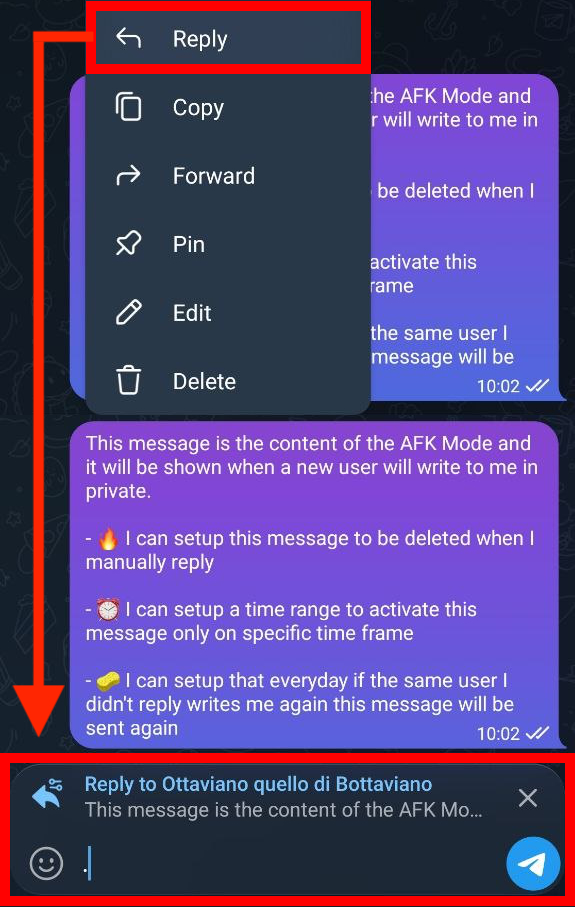
Creation process:
Choose the message to use as a response
Write the word that will activate the trigger
Choose type and where it works
📬Received Messages
View all messages received during the activation of the secretary.
Received Messages
View all messages received during the activation of the secretary:
Available features:
View total and messages to read
Click on the names to open the chats
See which messages you have already replied to
🧹Secretary Cleaning
Empty all messages received from the secretary.
Secretary Cleaning
Empty all messages received by the secretary:
Cleaning options:
Delete all messages received
Keep configuration and schedules
Removes everything and starts from scratch
Advanced Tools and Utilities
📚Introduction to Advanced Tools
The Advanced Tools are utilities for power-users that allow you to manage complex configurations, make backups and solve technical problems.
Available Tools
Get the telegram details of a group and find in which bottaviano lists the group is present
List all the groups and their details of your Telegram folder
Export/import bottaviano configurations and data
Restore bottaviano database to start from scratch
🔍Search Groups
Complete guide to searching for groups in lists, with practical examples of bot messages and all available options.
Complete Group Search
Find in which lists a specific group is present:
Search features:
Search in all configured lists
Show usage and status of the group
Provides group_id and topic_id
🗂️List Groups Folder
View a complete list of all your groups with details.
Complete Folder Groups List
List all the groups of a Telegram folder:
List functionality:
Show all groups in the folder
Complete information for each group
Provides group_id and topic_id
💾➡️🗄️Import Database
When importing the database, you will restore the settings of each feature of the bot.
Bottaviano Database Import
Import data from a previous bottaviano backup:

/import
.bottaviano file previously exported.Import functionality:
Send the backup file with the extension .bottaviano
Restore complete configurations
Replaces existing data
🗄️➡️💾Export Database
By exporting the database, you will save all the settings of each feature of the bot.
Bottaviano Database Export
Export all your data in .bottaviano format:
/export
.bottaviano file (bot standard)Export functionality:
.bottaviano file with all data
Includes all configurations of each bot feature
Portable and secure file, you can transfer the file to other devices
♻️Restore Database
When restoring the database, you will restore all the settings of each feature of the bot.
Bottaviano Database Restore
Restore the database to start from scratch, this operation is irreversible:
/reset
Reset functionality:
Delete all existing data
Default configurations
Operation cannot be undone
Account
📚Introduction to the Account
The Account section allows you to manage your subscription, view the plan status and disconnect and delete your account definitively.
user@example.comAccount Management
Manage your subscription
Change subscription plan
Permanently delete your account
Disconnect the current session
📱Disconnect Account
If you want to disable the bot without losing your data, you can disconnect your account from bottaviano.
Complete Account Disconnection
Disconnect the bot from your account:
/logout
Logout functionality:
Interrupts the active connection
All data remains saved
Use /login to reactivate
🗑️Delete Account
At any time you can delete any of your traces from bottaviano. Your subscription is still managed by Payhip, so you will need to cancel the subscription there as well.
Complete Account Deletion
Permanently delete your account and all data:
/delete_account
Deletion functionality:
Permanently delete the account
Operation cannot be undone
All data will be lost
🛠 Technical Support
Need help? Our team is always available for assistance
Contact Support
Our support team is available 24/7 to help you with any issues or questions about 🏛 Bottaviano. We always respond within a few hours.
❓ Frequently Asked Questions about Support
How can I report a bug or suggest a feature?
Use the support bot or email. All feedback is taken into consideration to improve the service.
How can I report a bug or suggest a feature?
Use the support bot or email. All feedback is taken into consideration to improve the service.
How can I report a bug or suggest a feature?
Use the support bot or email. All feedback is taken into consideration to improve the service.